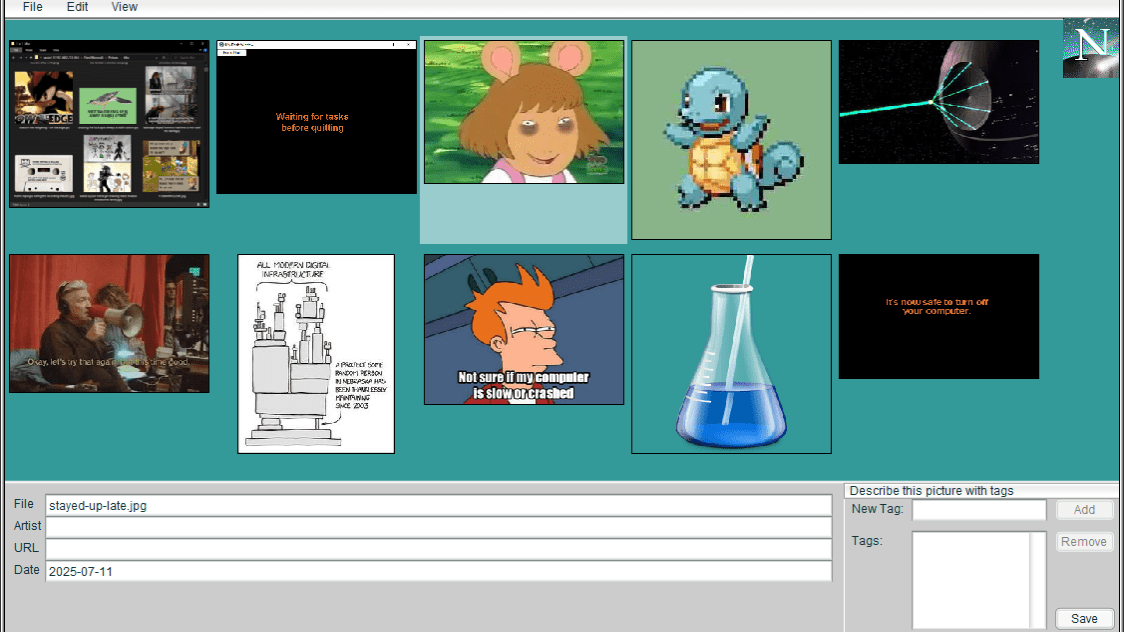
This program creates and edits an image gallery
#
I built an easy and convenient editor for my website’s “favorite pictures” gallery. Actually I over-engineered the hell out of this thing. I was just having way too much fun! It supports pictures, videos, and animated GIF’s.

#
In hindsight I should have been keeping a running log while I was making this, because I ended up spending a full month on this thing. That wasn’t the plan, but time flies when you’re having fun!
#
But what was the plan anyway? After all I had already finished making another program earlier that did the same thing. Easily adding pictures to the gallery. Why did I need another one?
#
 Don't do thisWell the thing is… that was the only thing it did. Sure I could drag and drop a picture onto that program and it would automagically add pictures to the website… one… at… a… time. But I was often running into situations where I wanted to modify pictures that were already added. Sometimes the program would make wrong guesses about which file format I wanted the pictures to be.
#
(For the love of god NEVER compress pixel-art with JPEG!!)
#
Making these minor changes manually from time to time is no big deal. They’re quick and simple. But it would be nice if my convenient program could make that stuff convenient too. Besides I just couldn’t escape the nagging guilt that any program that requires you to edit text files by hand is, by definition, an incomplete program and a crappy experience for anybody who isn’t the original programmer. I knew could do better, and my pride wasn’t going to leave me alone until I did.

#
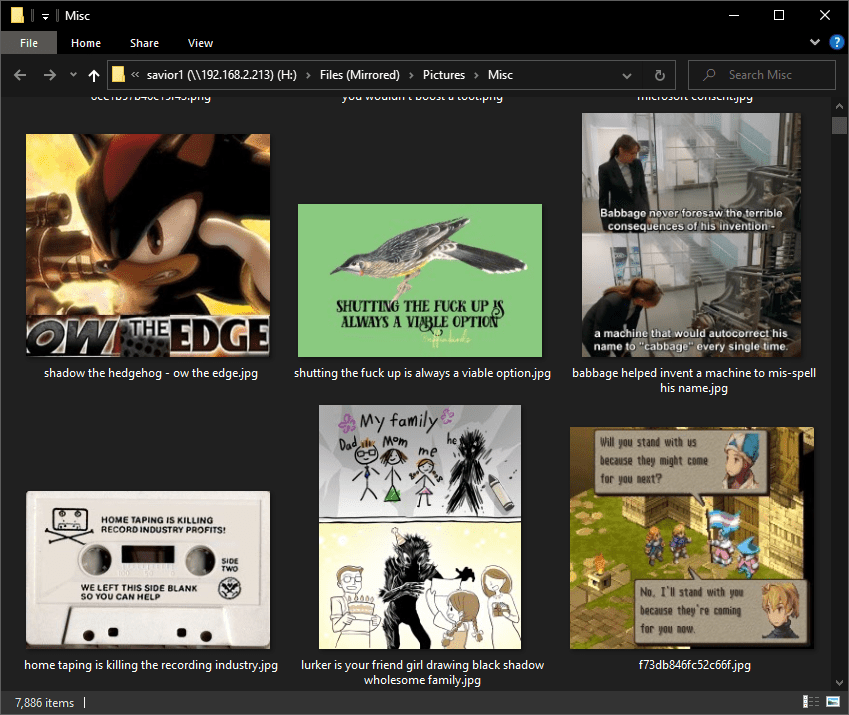
The original program was just a linear sequence of steps. I would need to start over to make anything more ambitious. But what should this new program look like? Ideally an image gallery editor would look like, well, an image gallery. And then I realized the answer was already staring me in the face. Windows! An image gallery is really just a folder full of pictures anyway. So the most intuitive experience is to just drag and drop pictures into a “folder” and have it mostly act the same way you expect Windows to act, but with the extra thumbnail-generation and list-making stuff happening automatically in the background.
#
Making something that resembles Windows turns out to be way more ambitious than you might assume. A folder is more than just a rectangle with pictures in it. It might look boring as hell but Windows is way more polished than you think. You can right-click and do things to the pictures. You can change the sorting order. There’s a menu at the top to show new people all of the options that are possible. I’m making this program for the sake of convenience so I am going to add every convenience I can possibly think of. I don’t need them. I just want them.
#
Now any rational person would stop me right there and tell me to only create an easy solution to the actual problem and nothing more. Well too late! I’m actually writing this a whole month later and I already completed this fully armed and operational battle-station!

#
Because I wasn’t just making this to solve a problem. And it wasn’t purely for the sake of pride either. I had ideas for new experiments I wanted to try. And that’s what truly motivated me.
#Experiment 1
#
The old program could only add one file at a time, and it lagged like crazy until it finished chewing on it. Not really a problem but it makes the experience of using it feel super janky. The solution? 2 programs! One to provide a smooth stutter-free user experience with graphical menus, and a second hidden program to run all the laggy Zinc commands that accomplish all the real work. I had never attempted something like this before.
#
My original plan for this was to tell the second program what to do by saving little to-do files into a folder. These would be tiny text files that simply had the command and relevant information. Glorified function-calls. The second program would check the folder periodically, load files and do tasks at its own pace, and then remove them. Since this “task queue” would exist outside of both programs, accessing it would be reliable because you wouldn’t depending on either program being responsive. Both programs could lag all they want.
#
But… the whole point of this is to eliminate lag from the main program so that all the menus and buttons will always work when you click them. So instead of saving a bunch of text files (which also causes lag), there is an obscure Flash feature called “Local Connection” which allows Flash animations to directly talk to each other. So if all the slow laggy tasks will be performed by the hidden second program instead, maybe I could directly communicate with the main program reliably?
#
And if I make 2 of these connections, I can have two-way communication. One sending, one receiving. So sending a task can later receive a result for that task. Of course all of this demands that the first program remain mostly lag-free or messages might get ignored. Which is actually fine, because that was already one of my main goals. The second hidden program can lag as much as it wants as long as it can reliably receive a to-do list from the main graphical program whenever it asks for it. Besides a “local connection” will tolerate a little bit of lag up to about a second. And I could just request the to-do list again if the connection times out and emits an error.
#How the Old Program Worked
#Experiment 2
#
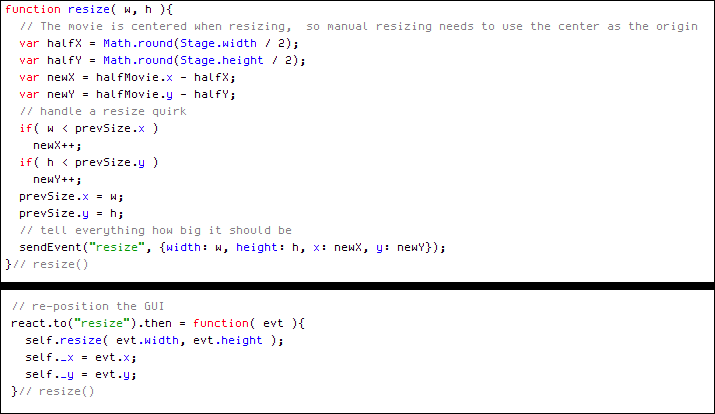
A resizable window. A folder in Windows can be resized. This is convenient. Can a Flash program somehow adjust itself when you resize it? Yes it turns it can, but… it’s weird. It doesn’t expand to the right and down like you would expect. Instead Flash moves your animation so that it’s centered inside the window when you resize it. This turns out to be very annoying, because now your animation or program won’t fill the window. Instead you will have all this blank space in the upper left because Flash moved everything away from that corner. This can be fixed with a bit to math to manually figure out where the new center of the window is, how big the window is, and where to move your stuff to reach the top-left corner again. But it was annoying.
#Default Resize Behavior
#Resizing Without Adjusting the Position
 Resize Correction Code
#Resizing While Correcting the Position
#Experiment 3
#
Processing multiple files at the same time. I don’t just mean dragging in multiple pictures at once. Each one takes awhile to generate the thumbnail file, compare compressed files to figure out the ideal file format, read EXIF metadata, check the artist folder to look up the website URL for known artists, etc… So I need to display temporary placeholders in the program. Ideally each with a progress bar showing that picture’s progress. And also figure out how to send status updates to those thumbnails as tasks get completed. There’s nothing more annoying than telling a program to do something and then seeing absolutely nothing happen. You need feedback or it feels like the program is broken. Besides, I enjoyed the puzzle of figuring out how to append promises to an existing array of promises and continue waiting for that entire list of asynchronous tasks to finish, so that I can drop additional pictures into the program while it’s in the middle of processing other pictures. A good program doesn’t force you to wait until it’s done.
#Experiment 4
#
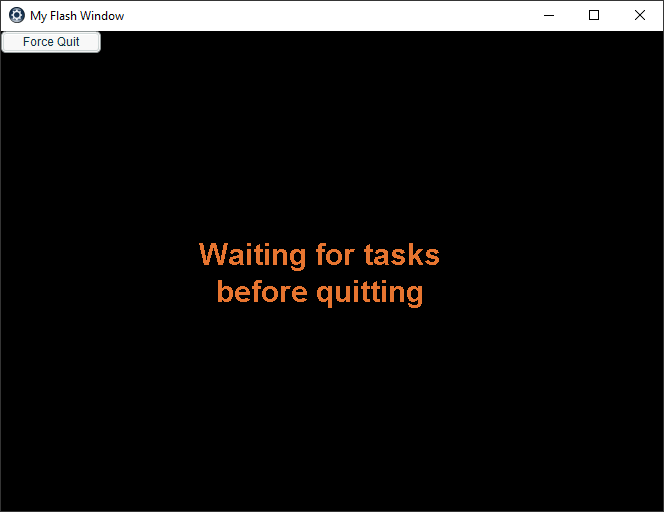
Quitting… How do I shut down this program without accidentally leaving behind a bunch of broken half-written files? You can’t just “stop” instantly, you have to finish.
#
But you don’t want the person using the program to feel like it’s ignoring them or “lagging” because it isn’t responding when they click the close button. So I minimize the program so that it visually “closes” right away, and then the second hidden tasker program continues until it finishes all of its tasks.
#
Not only that but it will continue to retrieve any remaining tasks from the main program until absolutely everything is finished. When the last of the tasks are sent the main program will truly close. And awhile later the second program will finish up its tasks and close too.
#
This means that you can drop 5 pictures into the program and then immediately “close” it, and those pictures will gradually get converted and properly added to the website in the background.
#Experiment 5
#
I also needed pop-up dialog windows to ask questions such as whether to replace a picture. I also needed a way to display the settings editor on top of everything in a way that blocks people from clicking buttons underneath. You take it for granted but something has to cause that to happen. One way to block mouse clicks in Flash is to overlap everything with a giant transparent MovieClip with an onPress() reaction that does nothing except eat mouse clicks. But my gallery manually detects mouse-clicks directly from the Mouse system, so I also programmed it to react to the moments when windows and drop-down menus display so that it can temporarily deactivate itself. The question pop-up needed to display a message, an icon, Yes and No buttons, a way to report which button was clicked, and have a close button for cancelling (in case the user isn’t sure what to choose) … aaaaaand then after building all these things, I discovered that Flash already has a built-in system for handling pop-up windows. Heck it even has an “Alert” window that does almost exactly the same thing as the one I created. So I adjusted my code to use Flash’s offical system and it was… still a little janky. But it works either way.
#
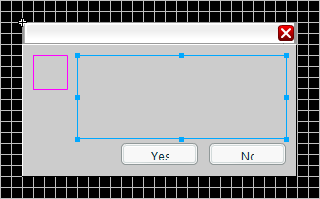 I built a dialog box
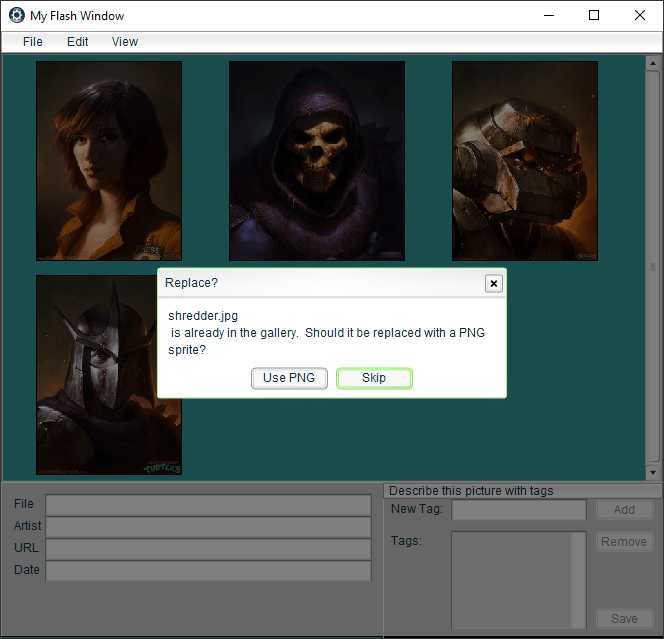 Then learned Flash already has them
#Experiment 6
#
A settings editor. Nobody on Earth ever wants to edit a text file by hand to change a program’s settings. Nobody wants to waste time looking up what all my little made-up words mean or how to get all the commas and quotation marks exactly right. My pride refuses to settle for that. The original Macintosh proved that it is possible for all settings to be 100% graphical. Every program made after 1984 should always do that. There’s no excuse. We figured it out. The problem is solved. I don’t care how much work it takes because it’s objectively the correct thing to do.
#
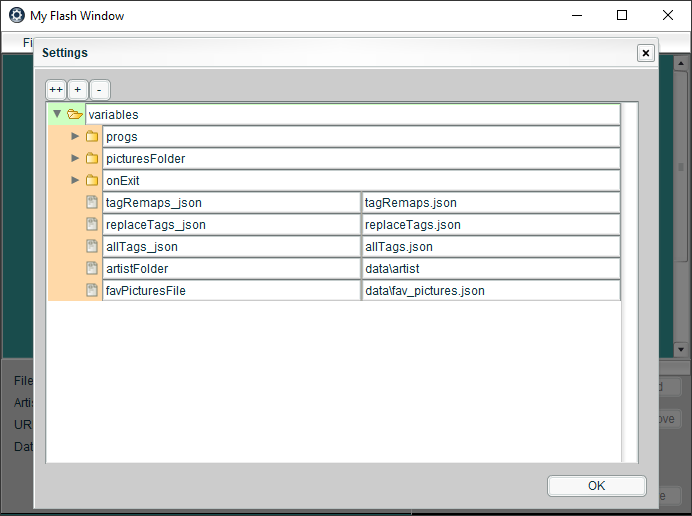 As it happens, I already created this general-purpose data editor years ago to help me debug my games while they’re running. It only takes 5 minutes to throw this into my program. It’s not perfect but even this is a massive improvement over editing text files by hand. Typing commas and brackets in the right places is a massive hurdle for anybody who isn’t a programmer. This instantly removes that problem.
#
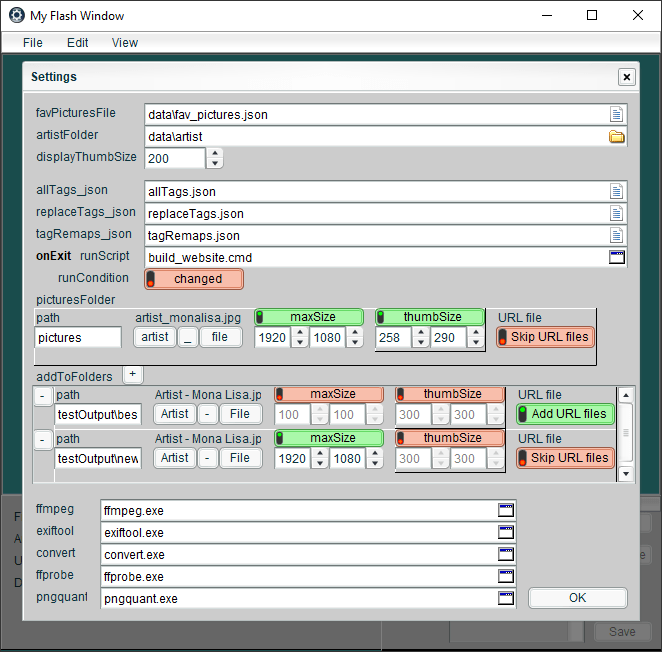 Obviously I can do better than that. Why make people type in the names of settings if the program already knows what they are? And why type in paths to files when you can just drag-and-drop things instead? Any other settings can just be buttons. People cannot misspell a button. It should always be this easy. After I finished the program I added this editor in about 2 days. That really isn’t that long. I spent a month making the rest of the program.
#The Real Stars of the Show
#
It’s kind of ironic because this program relies on a bunch of DOS command-line programs that other people made to convert files and read metadata. But those are programs written by programmers for other programmers. Normal people need buttons to click on or these things will go to waste. So… what are these magical programs?
- convert.exe
- This program converts pictures into other file formats. It comes with ImageMagick. Created by Cristy, Dirk Lemstra, and Fred Weinhaus.
- exiftool.exe
- This program reads and writes metadata information embedded inside of files, such as the author name, website, keywords, and copyright info. Created by Phil Harvey.
- ffmpeg.exe
- This program creates and converts video files. Created by a whole bunch of people.
- ffprobe.exe
- This program measures the width and height of pictures and videos. It can also read other information. It’s part of the ffmpeg project.
- pngquant.exe
- This program compresses PNG files into 256 colors with a full alpha channel. They’re sometimes just as small as JPG files. Amazingly good for losslessly compressing pixel art. Created by Greg Roelofs, Jef Poskanzer, Kornel Lesiński.
#
To check for lag I added a Netscape throbber animation in the corner of both programs. Fun fact: This was the original purpose of browser animations. They helped you figure out if your Windows 98 computer had silently crashed and frozen up in the middle of loading a web page for 10 minutes on dial-up internet. If it was animating that meant the computer was still working.

#
I decided to keep the Netscape throbber as a busy indicator because it was fun. The retro computer style became kind of a running theme.
 My program shutting down
#
So yeah this program works a little weird behind the scenes, but it’s reliable and gives me a smooth convenient experience, which is all that really matters.
#
That said… what it currently does is oddly specific. It copies pictures and videos into a folder and creates thumbnails for them, then it adds their filenames to a JSON file, and then runs a CMD script when you close the program. You can put anything you want in that script, but only programmers know how to use that stuff… I should probably figure out a simple way to spit out an HTML file that people can just directly use on their websites.
#
But how should I do that? I don’t want this to be baked into this program. JSON is general purpose data that can be fed into anything, not just a website generator. So I would prefer to handle HTML separately. The exit script can just call another program to do it. The overall result would be something that makes an HTML file, which is directly useful which makes this a reasonable default. An advanced user can just modify the script to do something else instead if they want.
#
So uh… which other program should it run? DOS commands are too primitive to pull this off. HUGO and NodeJS can create HTML files, but they require a whole folder full of junk just to say “hello world”. Total overkill for just creating a single web page. Hmm… since HTML is just a text file. Maybe I should just make my own little program to do this. A single self-contained EXE.
#
So it turns out that there is a way convert a NodeJS program into a self-contained EXE. 3 ways in fact! nexe, postject, and Web2Executable. I imagine this would be kind of bloated. NodeJS is 30 MB just by itself. But I’m already including ffmpeg and ImageMagick so that’s kind of a moot point. I could just bundle handlebars.js with NodeJS and call it a day…
#
Buuuuut… I kind of want to try making a simple template parser. Just to see if I can… for funsies!
#
Okay done! My templater understands two handlebar.js template codes. Just the {{variable}} tokens and {{#each}} iterator. Examples are in the templater help file. And my program is only 2.3 MB. Actually the flash file itself is only 45 KB, but Zinc adds an extra 2.3 MB on top of that.
#
So now my gallery editor spits out an actual HTML gallery by default, finally making it useful for the rest of the planet. It still also creates a JSON file too if any programmers want that.